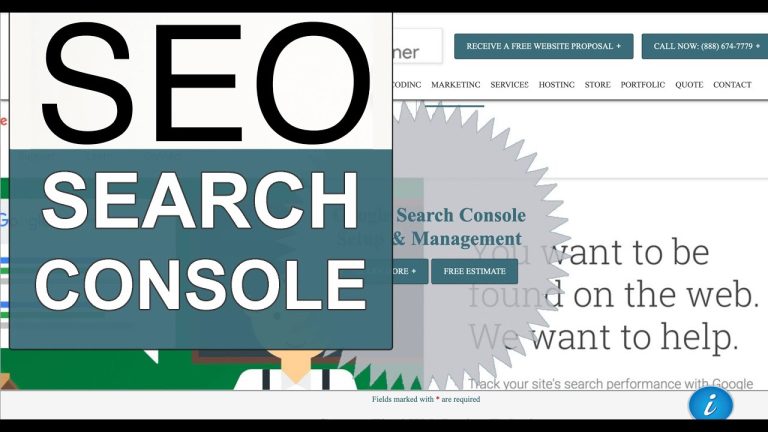
Most small business owners only look at their Google rankings when something feels wrong: the phone goes quiet, or a competitor suddenly shows up first. By then the problem has usually been building for weeks. Google Search Console is the free tool Google gives every website owner to monitor how their site performs in search, and a short routine once a month is enough to catch most problems early.
This guide walks through how to set it up, the five reports worth checking every month, and what to do when a number moves the wrong way. For a closer look at the numbers in the Performance report itself, see our guide to what your Search Console data means.
Why Search Console Is the Best Free Google SEO Tool
Search Console shows data that comes straight from Google: the searches your site appeared for, how often people clicked, which pages Google has indexed and why others were left out. Paid SEO tools estimate this information from the outside. Search Console reports it from the inside, and it costs nothing.
It also emails you about serious issues, such as pages that can no longer be indexed, security problems or manual actions, so you hear about them even if you rarely log in.
Setting It Up in 10 Minutes
- Go to Google Search Console and sign in with the Google account you use for your business.
- Add your site as a Domain property, so it covers every version of your address, with and without www.
- Verify ownership by adding the TXT record Google gives you to your domain’s DNS settings. Your web host or developer can do this in a few minutes.
- Submit your XML sitemap under Sitemaps. On WordPress with Yoast SEO, it is usually at /sitemap_index.xml.
- Add your business partner or web team as users, so you can share access without sharing your Google password.
Data starts filling in within a few days. The Performance report keeps up to 16 months of history, so the sooner you set it up, the more you will have to compare later.
Your Monthly 15-Minute Search Console Routine
1. Performance: Clicks, Impressions and Position
Open the Performance report, set the date range to the last three months and compare it with the previous period. Look at total clicks and impressions first, then the Queries tab to see which searches are growing or slipping, and the Pages tab to see which pages earn the traffic. A drop in clicks while impressions hold steady usually means your result has become less appealing to click. A drop in impressions means you are showing up less often.
2. Pages: What Google Has Indexed
The Pages report lists how many of your pages are indexed and the reasons the others are not. Some exclusions are normal, such as redirects or pages you marked noindex on purpose. Watch for important pages listed as “Crawled – currently not indexed” or “Not found (404),” and for any sudden jump in excluded pages after a site update.
3. Core Web Vitals: Speed and Page Experience
Core Web Vitals groups your pages into Good, Needs improvement and Poor, based on real visitor data for loading speed, responsiveness and layout stability on mobile and desktop. If pages move into Poor right after you add a plugin, a slider or a new theme, that change is the first place to look.
4. Links: Who Points to Your Pages
The Links report shows which sites link to you and which of your own pages get the most internal links. Check that your most important service pages are near the top of the internal list. If they are not, add links to them from related pages and blog posts.
5. Security, Manual Actions and Messages
Finally, confirm that Security issues and Manual actions both report no issues, and read any new messages. These problems are rare, but when they happen they can drop pages out of Google until they are fixed.
What to Do When Something Changes
- Clicks dropped for one page: search its main query yourself, compare your title and description with the results above you, and refresh the page’s content.
- Clicks dropped across the whole site: check whether the drop lines up with a Google algorithm update or a change you made to the site, and look at the Pages report for new indexing errors.
- A new page is not showing up: run URL Inspection on it and request indexing, then make sure other pages on your site link to it.
- Many pages are suddenly excluded: look for a recent change to robots.txt, noindex settings, redirects or the site’s URL structure.
Turn the Routine Into a Habit
Put a 15-minute reminder on your calendar for the first week of every month and keep a short note of the main numbers, so you can spot trends over time. If you would rather have someone else watch your data, our Google Search Console setup service covers setup, monthly reviews and fixes for anything that needs attention. Contact us for a free quote.