Pull up your business on Google Maps on your phone and look at the buttons right under your name. If you have set up chat on your Google Business Profile, there is now a Message button sitting right next to Call. That is new as of this month, and it changes how a lot of customers will try to reach you.
For a contractor on a job site, a salon owner with a client in the chair, or a restaurant during the dinner rush, that is good news: customers who cannot get you on the phone have an easy way to leave a question instead of moving on to the next listing. But it cuts both ways. If that button points to a WhatsApp number nobody watches or a phone that cannot receive texts, you now have a broken door right at the top of your Maps listing. Here is what changed and what I would check this week.
What Google Changed on Maps

Google announced the change in its monthly Small Business Bulletin, posted to the Business Profile Community on November 5, 2026 by Lisa Landsman, Google’s Head of Industry Engagement and SMB Success. As Barry Schwartz reported at Search Engine Roundtable on November 6, the bulletin says customers on both Android and iOS “can now find a prominent Message button right next to ‘Call’ on your Google Maps listing.”
Before this, finding chat on Maps meant scrolling deep into a profile. Now Google says the Message option shows up whether a customer is viewing your profile, has opened the expanded header, or is using the bottom action bar. Schwartz posted a screenshot of his own business listing in the iOS app with Message sitting right beside Call.
Tapping Message sends the customer to whichever chat option you set up in your Business Profile. According to Google’s Business Profile chat help page, there are two choices: WhatsApp or text message (SMS). A few details from that page are worth knowing:
- You need a claimed and verified Business Profile to add chat.
- Chat options are only available in select regions and might not be available for every profile. Google does not list which regions.
- If you add both WhatsApp and text, customers only see the text option.
- Your chat activity shows up in your Business Profile performance metrics.
Search Engine Journal’s Matt G. Southern summed up the risk well: a dead link or an unread inbox now sits in one of the top buttons people see when they tap your Maps listing.
Why This Matters for Miami Small Businesses

Here in Miami, WhatsApp is how a lot of people talk to everyone, including the businesses they hire. Many customers would rather send a quick message than call, especially if they are more comfortable writing in Spanish or Portuguese, or simply do not want to sit on hold. Google putting Message on equal footing with Call matches how people actually want to reach a business.
Google’s own pitch in the bulletin is that chats “land where you already work” and that the button “catches leads when you can’t pick up,” such as when you are mid-appointment or off-site. That is true, but only if three things are in place:
- The link actually works. A WhatsApp link with a typo, an old phone number, or a number that is not on WhatsApp sends customers into a dead end.
- Someone sees the message. If chats go to a personal phone that is on silent, or to an old office line that cannot receive texts, those leads disappear quietly. You will not even know you missed them.
- Someone answers quickly. A customer who taps Message instead of Call is often comparing two or three businesses at once. The first one to reply usually gets the job.
The timing matters too. Black Friday, holiday hours, and end-of-year bookings are all coming up, and customers will be checking listings for hours and availability. This is a good month to make sure the most visible button on your listing does what it is supposed to.
Your 15-Minute Message Button Checklist
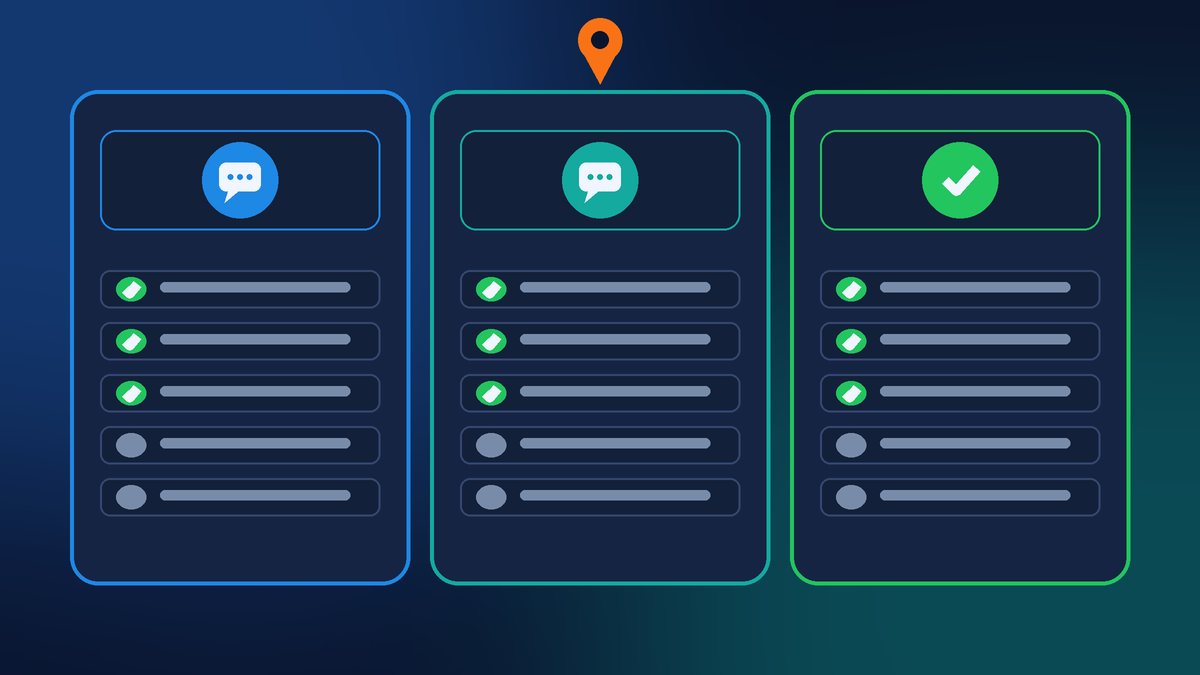
This is what I would do today. Most owners can finish it in about 15 minutes.
- Look at your own listing. Open Google Maps on your phone, search for your business, and see whether a Message button shows up next to Call. If it does not, you may not have chat set up yet, or chat may not be available for your profile.
- Check or add your chat option. In your Business Profile, go to Edit profile, then Contact, then click Edit next to Chat. Choose WhatsApp or Text message and enter the link or phone number, then save.
- Use the right WhatsApp format. WhatsApp’s click-to-chat instructions say to use
https://wa.me/followed by your full number in international format with no plus sign, zeroes, brackets, or dashes. A Miami number looks likehttps://wa.me/1305XXXXXXX. - Pick one channel on purpose. If you enter both WhatsApp and text, Google only shows text. If your team lives in WhatsApp, enter only WhatsApp.
- Send yourself a test. From a different phone, tap Message on your Maps listing and send a real message. Confirm it arrives where you expect and that the right person gets a notification.
- Set reply expectations. Turn on a WhatsApp Business greeting or away message, or a text auto-reply, that tells people when you will get back to them. Then actually reply within business hours.
- Watch your numbers. Check your Business Profile performance metrics next month to see whether chats are coming in.
Make Your Website Match
Customers bounce between your Maps listing and your website, so they should offer the same ways to reach you. If Maps invites people to message you, your website should too. WhatsApp’s help page notes that its click-to-chat links and official “Chat on WhatsApp” button can be used on contact pages and mobile versions of your website. A tap-to-text or WhatsApp link on your mobile site, next to your phone number and contact form, makes it easy for a customer to pick the way they prefer.
While you are at it, make sure the phone number, hours, and address on your website match your Business Profile exactly. Mismatched details confuse customers and make your listing look less trustworthy. With holiday hours coming, it is worth updating both at the same time.
Want Help Setting It Up the Right Way?
If you would rather not fiddle with WhatsApp links, Business Profile settings, and website buttons yourself, contact Final Web Design. We will check your Google Business Profile, set up and test your Message button, add matching click-to-chat and tap-to-call buttons to your website, and make sure your hours and contact details line up everywhere before the holiday rush.
Sources: Barry Schwartz, Search Engine Roundtable, “Google Expands Business Messaging To Google Maps On iOS & Android” (Nov 6, 2026); Matt G. Southern, Search Engine Journal, “Google Gemini Business Profile Tools Are Coming To Workspace” (Nov 6, 2026); Google Business Profile Help, “Chat with customers from your Business Profile”; WhatsApp Help Center, “How to use click to chat”.