If your website tracks visitors with Google Analytics or tracks leads and sales for Google Ads, there is a piece of code on every page that makes it work. Google just announced a change to how that code is managed, and it comes with a January deadline for some websites.
On November 17, Google posted a Tag Manager release note titled “Google tag and Google Tag Manager unification.” In short, Google is folding its two tracking tools into one. For most small business websites, nothing breaks. But if your tracking code was installed the “wrong” way, possibly years ago by someone who no longer works on your site, now is the time to look.
Here is what is changing, who needs to act, and how I would check your site this week.
Google Tag vs. Google Tag Manager, in Plain English
Google has two ways to put tracking on a website. The Google tag (also called gtag.js) is a short snippet that sends data to Google Analytics or Google Ads. Its ID usually starts with G- for Analytics or AW- for Ads. Google Tag Manager is a bigger toolbox. You install one container, with an ID that starts with GTM-, and then manage all your tracking from a dashboard instead of editing website code.
Many small business sites use one or the other. Some use both. And some, as we will see, use a mix that Google no longer supports.
What Google Announced on November 17
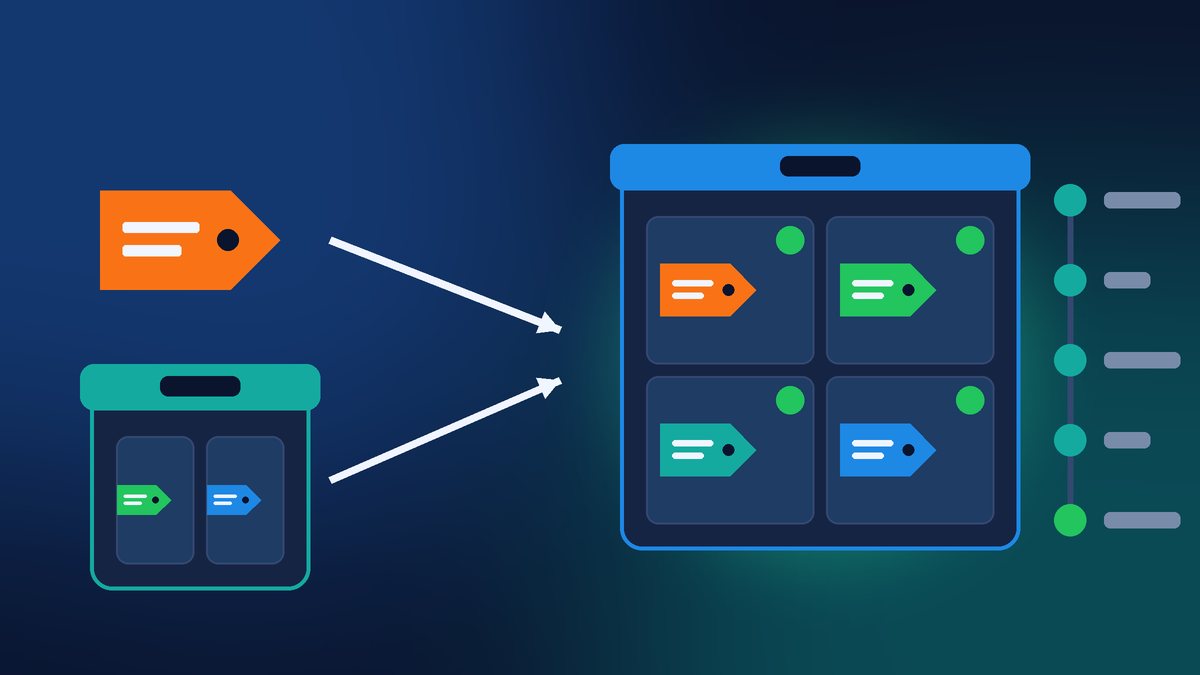
According to Google’s release note, “each Google tag becomes a Tag Manager container.” Websites that only use the Google tag “will have the ability to use Tag Manager’s interface-driven tagging features, debugging, and version control.” Google first described this plan in an August 20 help article, and Search Engine Roundtable noted that the November note suggests it is now rolling out.
The key points from Google’s note:
- Your tags should keep working. Google says the upgrade “won’t change the in-page behavior of the Google tags.” Each Google destination, such as Analytics or Ads, keeps its own tag, along with your existing setup.
- New install snippets are changing. All new snippets will be the same, and they won’t include the gtag config command. Google recommends using Tag Manager’s Initialization trigger instead.
- Permissions are changing. Tag Manager container permissions will now control who can see data in Tag Assistant, Google’s tag testing tool.
- Unsupported installs have a deadline. “If you have an unsupported installation, you’ll receive the upgrade in January 2027, and are advised to adjust your setup before then.”
As Search Engine Land pointed out, Google has not said every existing installation needs changes. The first job is to find out whether yours is one of the unsupported ones.
What Counts as an “Unsupported Installation”?
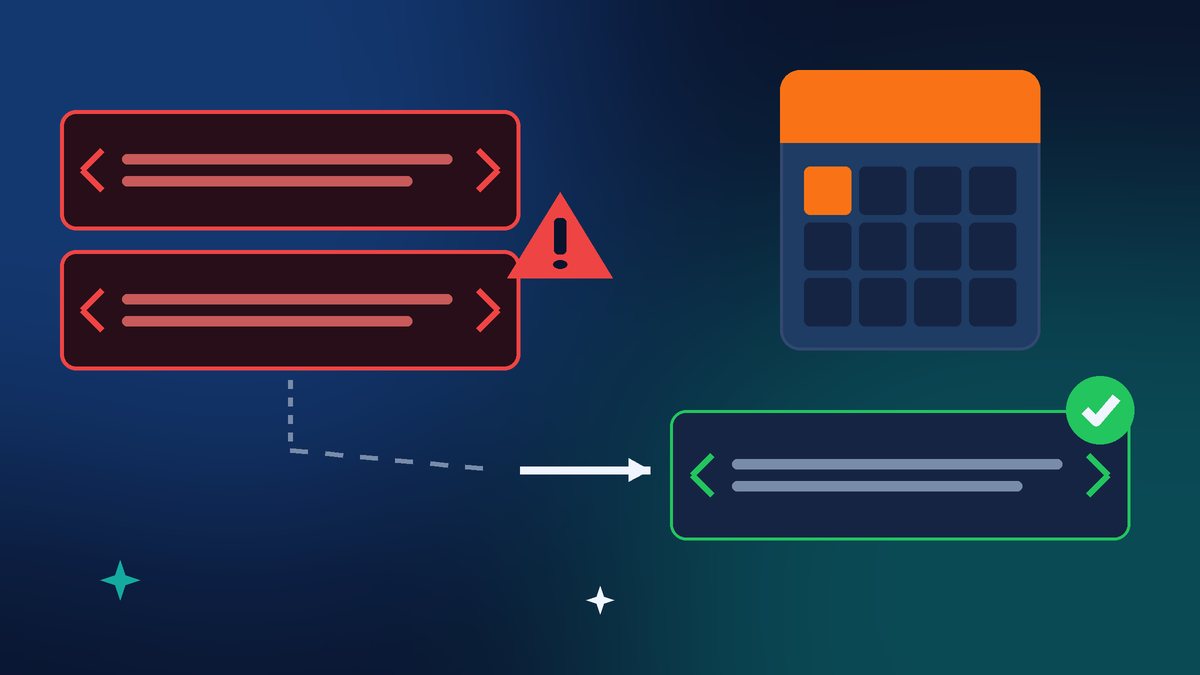
Google’s help page on setting up the Google tag correctly explains it. The unsupported setup is a site that loads a Google Tag Manager snippet (gtm.js) but uses it with a G-, AW- or DC- ID and then relies on gtag(‘config’) commands to set things up. Google’s warning is direct: Tag Manager snippets “will soon be updated to no longer recognize or wait for any gtag(‘config’) commands,” and sites using that mix “may experience unexpected changes to their tag behavior.”
Why should a business owner care? Because the code that breaks is often the code that counts your leads. If Google Ads stops recording form fills or calls correctly, your ad campaigns optimize on bad data and you may spend more for fewer customers. If Analytics goes quiet, you lose the numbers you use to judge your website.
I see this kind of mixed setup most often on sites that changed hands. One developer adds Tag Manager, another pastes a Google Ads snippet, a plugin adds a third piece, and nobody writes it down. As I wrote after the Optimizely incident, every outside script on your site deserves an owner, and tracking code is no exception.
Check Your Email and Your Code
Google says users on containers with the unsupported implementation received an email notification. So step one is simple: search the inbox you use for Google Ads, Analytics or Tag Manager for messages from Google about your tag installation.
Step two is to look at the code. Google gives two clear examples:
- Supported: the standard Google tag snippet, which loads gtag.js with your G- or AW- ID and then calls gtag(‘config’) with that same ID.
- Also supported: a Google Tag Manager snippet with your GTM- ID, with your Analytics and Ads tags set up inside the Tag Manager dashboard.
- Unsupported: a Tag Manager snippet combined with gtag(‘config’) commands for G-, AW- or DC- IDs.
The fix Google describes is to copy your Google tag ID from Google Ads or Google Analytics, remove the Tag Manager snippet and the stray config commands tied to it, and paste the standard Google tag snippet right after the opening head tag on every page. If you use Tag Manager for other tools, keep the Tag Manager snippet with your GTM- ID and set up your Google tags inside the Tag Manager dashboard.
My Checklist for Small Business Websites
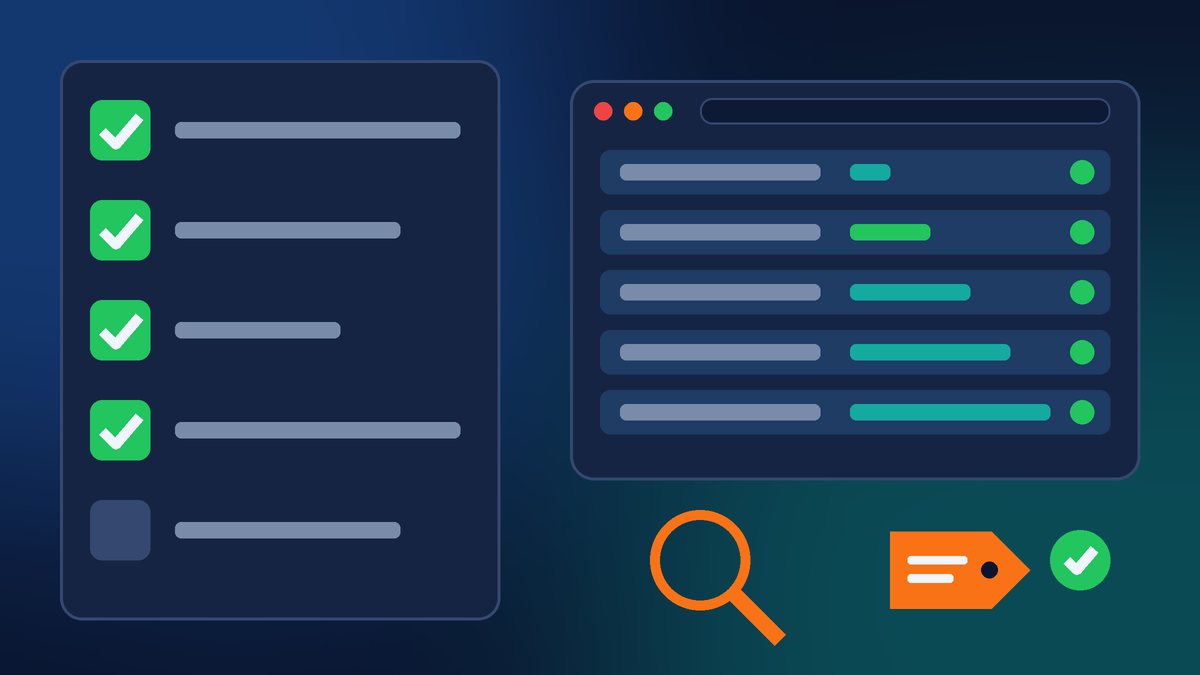
- Make a list of your tracking. Which Analytics property, which Google Ads account, and is Tag Manager in use? Who has access?
- Find where the code lives. On WordPress it may be in your theme, a header and footer plugin, Google’s Site Kit plugin, or Tag Manager. Duplicate installs are common.
- Run Tag Assistant. Google suggests opening Tag Assistant, adding your domain, and confirming your tag ID shows a green or blue status icon.
- Check the network requests. Google also suggests opening Chrome Developer Tools, going to the Network tab, refreshing the page, and confirming requests go to googletagmanager.com/gtag/js instead of /gtm.js when you use gtag config commands.
- Test a conversion. Submit your own contact form or click your phone number and confirm it shows up in Google Ads or Analytics.
- Review access. Because Tag Manager permissions now control Tag Assistant data, remove former employees and old agencies you no longer work with.
If you already use Tag Manager, you may also see an optimization banner. Google’s August help article says no changes will be made automatically, and you can preview changes before publishing. Optimizing lets Tag Manager send data directly to Google instead of loading extra gtag.js code, which Google says means faster website performance.
Do Not Wait Until January
January is when holiday sales reports, year-end reviews and new ad budgets all land at once. That is a bad time to find out your conversion tracking has been off for weeks. Checking your setup takes less than an hour for most sites, and fixing an unsupported install is usually a small code change.
If your tracking is already set up the standard way, the good news is you get Tag Manager’s debugging and version history tools at no extra cost.
Want Me to Check Your Tracking?
If you are not sure how your Google Analytics and Google Ads tracking is installed, I am happy to take a look. I will find every tag on your site, fix anything Google no longer supports, and test your forms and calls so you know your numbers are right. Contact Final Web Design and let’s get your tracking ready before January.
Sources: Google Tag Manager Help, Release notes (Nov 17, 2026); Google Tag Manager Help, “Updates to Google tag and Google Tag Manager” (Aug 20, 2026); Google Tag Manager Help, “Set up your Google tag installation correctly for gtag.js”; Search Engine Roundtable, “Google Tag & Google Tag Manager Unification” (Nov 17, 2026); Search Engine Land, “Google unifies Google tag and Tag Manager with new tagging and debugging features” (Nov 18, 2026).