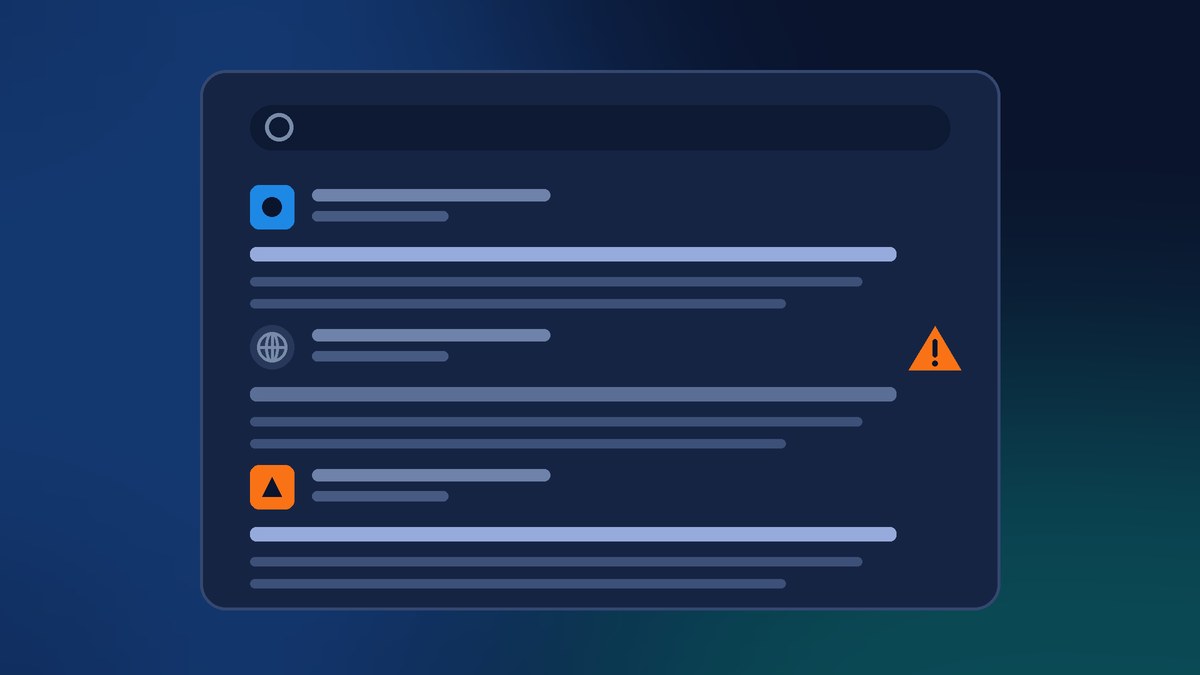
Look at any Google results page on your phone and you’ll see a tiny icon next to each website’s name. That’s the favicon. It’s easy to forget about, but it’s often the first piece of your brand a potential customer sees, before they read your title or click anything.
This week Google quietly tightened up the rules for how it finds that icon, and its Search team confirmed that SVG favicons currently don’t show up in Search at all. If your site shows a plain gray globe instead of your logo, there’s a good chance one of these rules is the reason. Here’s what changed, why it matters, and how to check your own site in about ten minutes.
What Google Changed This Week
On October 27, Google updated its favicon documentation for Search. As Search Engine Roundtable reported, one key rule now reads that Googlebot “must be able to crawl the home page, follow any redirects from there to the page where the favicon is specified,” and that Googlebot-Image must be able to crawl the favicon file itself. None of those URLs can be blocked by robots.txt “or by other means.”
The old wording only said the home page and the favicon file couldn’t be blocked. It didn’t mention redirects at all. Google’s John Mueller explained that the change came about because of AI: Google noticed that AI tools didn’t quite understand how to troubleshoot missing favicons, tested the clearer wording as a prompt, and found it worked much better.
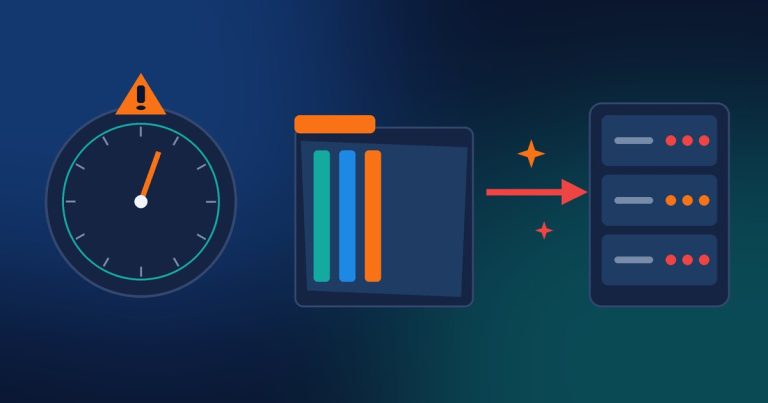
In the same week, Google’s latest Search News episode called out a favicon issue directly. According to a recap of the episode, Google stated that SVG favicons aren’t currently supported, so a site that only offers an SVG icon is probably not showing a favicon in Search or Discover. Google’s supported list is BMP, GIF, ICO, PNG, JPEG, PPM and TIFF. SVG isn’t on it.
Why a Tiny Icon Matters for a Small Business
I know a 48-pixel icon sounds like the least important thing on your website. But think about where it shows up. On mobile, Google shows your favicon right beside your business name in the results. When someone searches for “plumber near me” or “Miami web design,” they’re scanning a list of similar looking results. A clean, recognizable icon makes you look established. A generic placeholder makes you look like you forgot something, and you can quietly lose clicks to competitors because of it.
The Rules Google Uses for Favicons

Here’s my plain-English version of Google’s current guidelines:
- One favicon per site. Google supports one icon per hostname. A subdomain like shop.example.com can have its own, but a subfolder like example.com/shop can’t.
- It has to be crawlable. Googlebot needs to reach your home page and follow any redirects from it. Googlebot-Image needs to reach the icon file. Nothing can block either one.
- It must be square. A 1:1 ratio, at least 8×8 pixels. Google recommends going larger than 48×48 so it looks sharp everywhere.
- Use a supported format. PNG or ICO are the safe choices. SVG alone won’t work right now.
- Keep the URL stable. Don’t keep renaming or moving the file.
- Point to it from your home page. Add a link tag in the head of your home page, such as
<link rel="icon" href="/favicon.png">.
Google is also clear that following all of these rules doesn’t guarantee your icon will appear. But if you break one, it almost certainly won’t.
The Most Common Reasons a Favicon Goes Missing
When I audit small business sites with a missing favicon, it usually comes down to one of these:
- An SVG-only icon. Modern themes and site builders sometimes output only an SVG logo as the icon. It looks great in a browser tab but Google won’t use it.
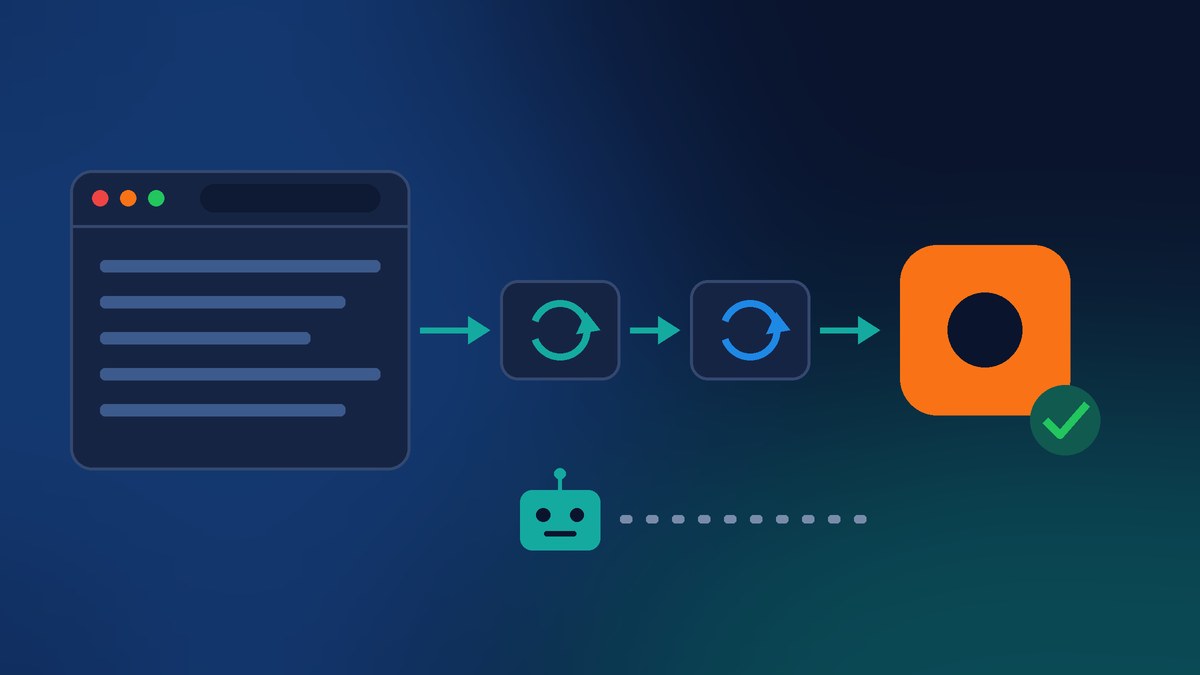
- Redirect chains. Your home page might jump from http to https, from non-www to www, or to a language or location page. Each hop is another thing Googlebot has to follow, and the icon has to be declared on the page it lands on.
- Overzealous blocking. A security plugin, firewall rule or bot setting at your CDN can block Google’s crawlers from image files or folders without you noticing. A robots.txt rule that blocks your uploads folder can do the same.
- A stretched or rectangular image. If you uploaded your full horizontal logo, it isn’t square, and it isn’t eligible.
- A missing link tag. Some custom or older sites simply never declare an icon on the home page.
How to Check and Fix Your Favicon in 10 Minutes
You don’t need to be technical to do most of this. Here’s the checklist I use:
- Search for your business name on your phone. If you see your logo next to your site name, you’re probably fine. If you see a gray globe, keep going.
- Find your icon file. Open your home page, right-click and choose View Page Source, then search for
rel="icon". Note the file name. If it ends in .svg and there’s no .png or .ico option, that’s your likely problem. - Add a square PNG. On WordPress, go to Settings > General (or Appearance > Customize > Site Identity, depending on your theme) and upload a square PNG of at least 512×512 pixels as your Site Icon. WordPress creates the smaller sizes for you.
- Test your redirects. Type your domain a few ways (with and without www, with http) and make sure they all end at the same home page with no long chain of hops.
- Check for blocking. Open your robots.txt file (yourdomain.com/robots.txt) and make sure it doesn’t block the folder your icon lives in. If you use a security plugin or CDN bot protection, confirm Google’s verified crawlers are allowed through.
- Ask Google to recrawl. In Google Search Console, use the URL Inspection tool on your home page and request indexing. Google says it can take days to weeks for a new icon to appear, so be patient.
While You’re in Search Console
The same Search News episode included a few other updates worth a look. According to the recap, Search Console now lets everyone add their Instagram, TikTok and YouTube profiles as “platform properties” to see how that content performs in Google Search. Google also rolled out reporting on generative AI features in Search and Discover to all sites, and added new multimodal reports covering visits that start from Google Lens, Circle to Search and image searches, traffic that was never counted in Search Console before.
If you put real effort into social media or product photos, these free reports are worth turning on.
The Bottom Line
A favicon is one of the smallest pieces of your website, but it shows up in one of the most valuable places, right next to your name in Google. This week’s update spelled out exactly where things go wrong: SVG-only icons, redirects Google can’t follow and blocked files. Fixing those is usually a quick job, and it makes your business look polished before anyone even clicks.
Want Us to Check Your Site?
If you’re not sure why your logo isn’t showing in Google, or you’d like a second set of eyes on your redirects, crawler settings and Search Console setup, we can help. Contact Final Web Design and we’ll review your favicon and the technical basics behind it, fix what’s broken and give you a clear, up-front plan.
Sources: Google Search Central, “Define a favicon to show in search results” (updated Oct 27, 2026); Search Engine Roundtable, “Google Updates Favicon Documentation To Specify Googlebot Must Follow Redirects From Homepage To Favicon” (Oct 27, 2026); Submitinme, “Search Console Adds Platform Properties and Multimodal Search Reports” (Oct 27, 2026).