Here is a quick question for every local business owner reading this: when was the last time you looked at your own Google Business Profile the way a customer sees it? Not the dashboard, but the actual listing on Search and Maps.
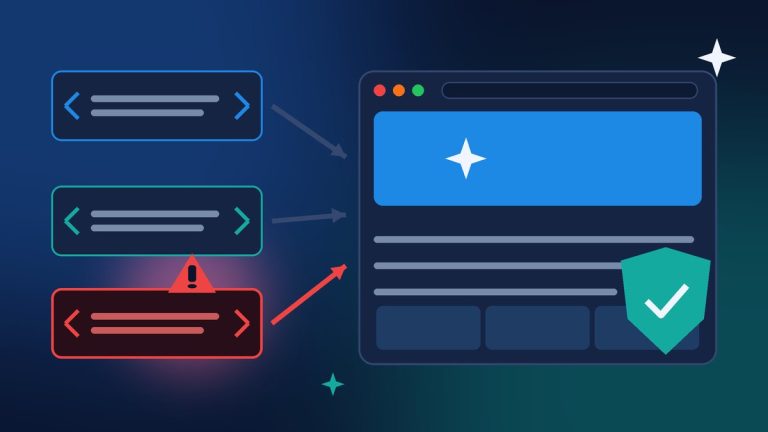
I ask because some business owners are finding a “Book Online” button on their profile that they never set up. That can be great news, because it is one more way for a customer to reach you. It can also be bad news if that button leads to the wrong page, or to an error. Here is what has been reported this week, what Google’s own rules say about booking links, and the five-minute check I would do today.
What Changed: “Book Online” Buttons Are Showing Up on Their Own
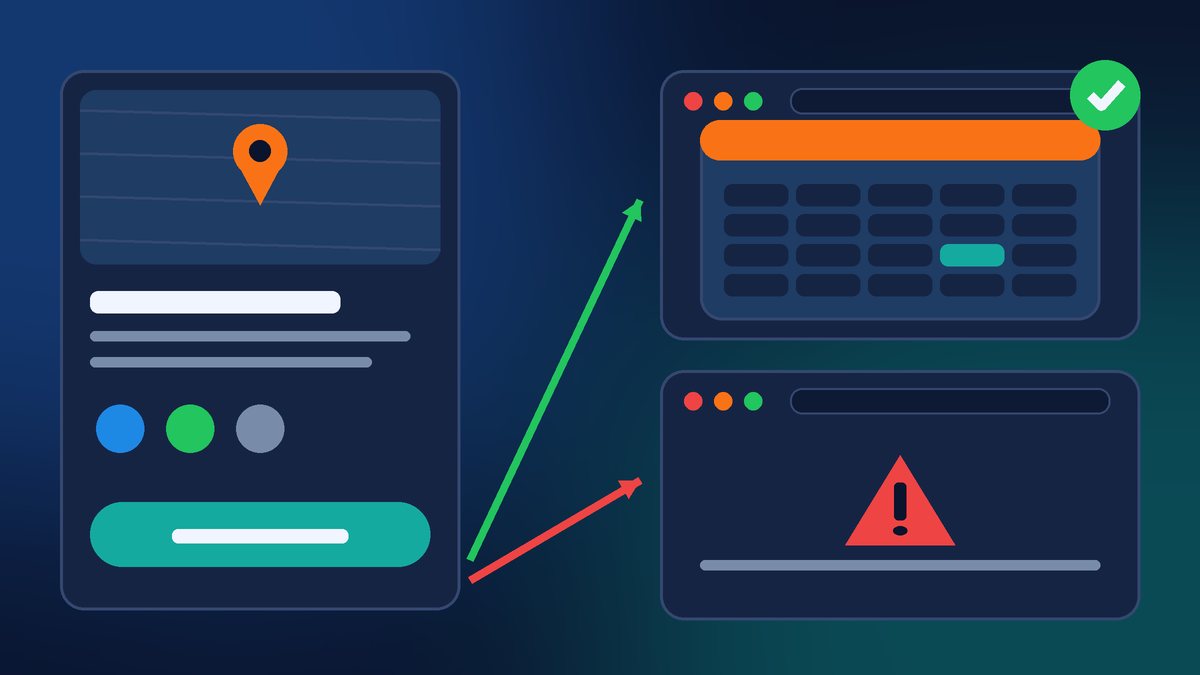
On November 9, Barry Schwartz at Search Engine Roundtable reported that Google may be automatically adding booking links to some Business Profiles. He noticed a booking link had been added to his own company’s profile, in both Google Search and Google Maps. Local search experts Joy Hawkins, Brandon Schmidt and Syed Amir had posted about the same thing a few days earlier.
A few details from that report stood out to me:
- “Book Online” links appeared for a home care business and a home services business that did not have special booking software installed and connected to their profile. In those cases, the link went to the business’s contact form.
- When the link pointed to Google’s own “maps/reserve” booking page, Joy Hawkins saw a 500 error. When the business had its own link or scheduling software set up, the button worked.
- Syed Amir said that, across several client profiles, simply adding the website’s Contact page in the Booking link section was now enough to trigger the “Book Online” button. Before, this seemed to require setup through one of Google’s booking partners.
- When Barry tested his own button, it went straight to his company’s contact and scheduling page, so he was not sure whether the error was a temporary bug.
Google has not announced this, so I would not call it an official feature yet, but it is worth checking your listing.
There is a second change that points in the same direction. On November 4, Search Engine Journal reported that Google added home service booking and quote links to AI Mode in the U.S., through partners such as Angi, Thumbtack, Housecall Pro and Jobber, with ServiceTitan listed as coming soon. According to Jobber’s help page, when Google matches a Jobber account to a Google Business Profile at the same address, it adds a “Book Online” button to that profile that links to the business’s Jobber form, usually within a few days. So if you use one of those tools, that could be where your new button came from.
Either way, Google is putting a booking button front and center for more local businesses. If it goes to a broken page, the customer does not blame Google. They blame you, and then they call your competitor.
What Google’s Rules Say About Booking Links
Google has a clear business links policy, and it is worth knowing because it explains why some links work and others get removed. Here are the parts I think matter most for a small business website:
- The link must let customers finish the action. Google says a booking link must allow the customer to complete the booking. Social media pages, messaging links, app store links and link shorteners are not allowed.
- It must go to a dedicated page. Google asks for a dedicated landing page, and for businesses with more than one location, a page for that specific location, not a general home page.
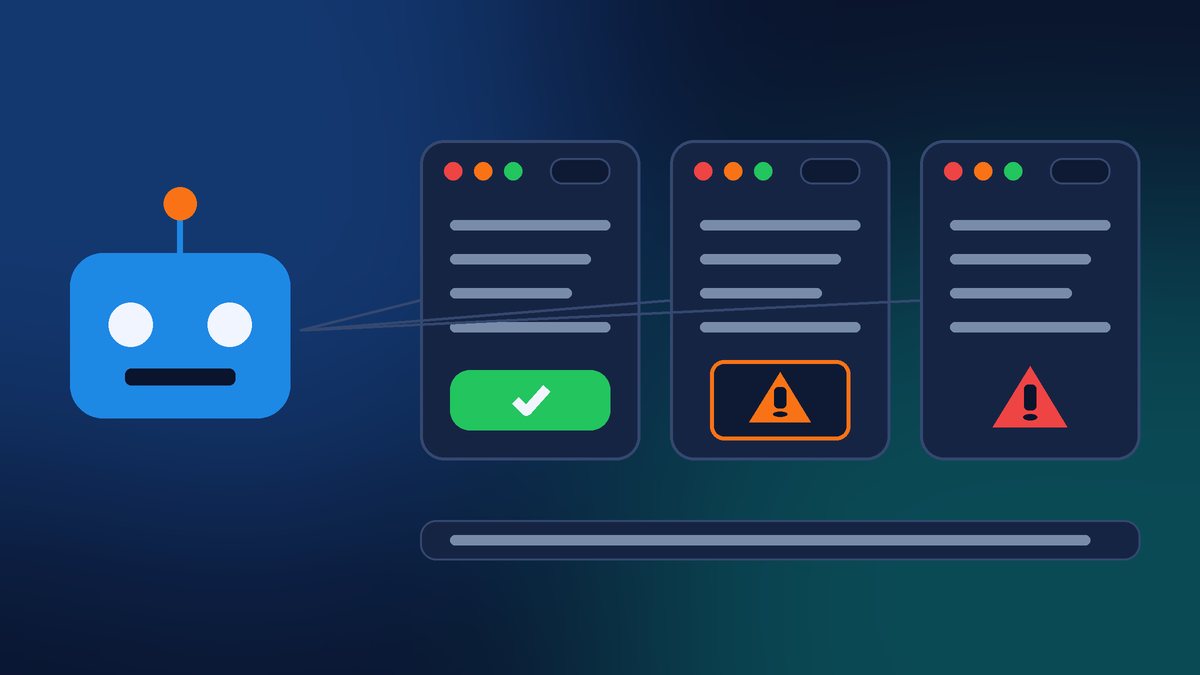
- Google checks the link with a bot. Google’s automated crawlers visit business links, daily at most, to confirm they lead to a valid, relevant page. Links that cannot be crawled may be removed.
- The page must return “200 OK.” Google specifically lists 404, 403, 500 and 503 errors as not acceptable.
- Do not block the checker. The page must not block the crawler that identifies itself as Google-BusinessLinkVerification, use rate limiting that stops it, require a CAPTCHA or login, block it by IP address, or show it different content than people see. Google notes these verification crawlers do not follow robots.txt rules. The page also has to fully load, including images, CSS and JavaScript, and must not be geoblocked.
That last point is the one I see trip up WordPress sites. Many WordPress sites use security plugins, firewalls or bot protection to keep out bad traffic. That is a good thing. But if those tools put a challenge page in front of your booking or contact page, Google’s checker may not be able to verify the link, and the button can disappear.
One more detail from Google’s help page on managing business links: you cannot delete third-party booking or reservation providers directly from your Business Profile settings. To remove one, you contact that provider through its opt-out link, support form or account portal. Google says providers are required to process opt-out requests within 5 business days, and if they do not, you can report a third-party violation to Google.
My 5-Minute Booking Button Checklist
Here is what I would do today. Grab your phone, because that is how most customers will see it:
- Search for your business name on Google and open it on Google Maps. Look for “Book Online,” “Book,” “Schedule” or similar buttons. Tap every one of them.
- Check where each button goes. Does it load? Is it the right page for this location? Can a customer actually book or request an appointment there?
- If you see an error or the wrong page, fix the link. Open your profile in Google Search, select Booking, and add or edit the link. If you have more than one booking link, use “Set preferred link” to put the right one on top.
- Give Google a real booking page if you can. A contact form is better than an error, but a page where customers can pick a time is what a “Book Online” button promises. Many scheduling tools can embed a calendar right on your website.
- Make sure Google can reach that page. Test it in a private browser window, confirm it loads without a CAPTCHA or login, and ask whoever manages your site to confirm your firewall or security plugin is not challenging Google’s verification crawler.
- If a third-party link is wrong, contact that provider. If they do not remove it within 5 business days, report it to Google.
- Repeat after any website change. A redesign, new page URLs or new booking software can break the button. An old URL that now returns a 404 is exactly what Google says it may remove.
Want Us to Check Your Booking Button?
A “Book Online” button can turn a search into a real appointment, but only if it leads somewhere that works. If you would like a second set of eyes, contact Final Web Design. We will review your Google Business Profile links, test them on mobile, make sure your booking or contact page loads for both customers and Google’s checker, and set up a proper booking page on your website if you do not have one yet.
Sources: Search Engine Roundtable, “Google Adding Booking Links To Business Profiles Automatically?” (Nov 9, 2026); Search Engine Journal, “Google Adds Home Service Booking & Quote Links To AI Mode” (Nov 4, 2026); Google Business Profile Help, “Business links policies & guidelines”; Google Business Profile Help, “Manage your local business links”; Jobber Help Center, “Jobber and Google AI Mode integration”.