If your website runs on WordPress and sits behind Cloudflare, you’ve probably seen that “Just a moment…” screen a hundred times. It’s the quick check Cloudflare shows while it makes sure you’re a real person. Most of us don’t even think about it anymore. That’s exactly why attackers are now copying it.
This week, security researchers at Securonix published a detailed report on an attack they named TRUST#GRAFT. It uses a fake Cloudflare-style verification screen as cover while it checks one thing: is the person looking at this page logged in to the site as a WordPress administrator? If they are, it uses that person’s own browser to quietly install a backdoor plugin. No password guessing. No server exploit. Just a normal admin session doing something the admin never asked for.
Here’s how it works in plain English, why it matters for small business sites, and the simple habits I’m recommending to our clients this week.
What the Researchers Found
According to the Securonix Threat Research report by Akshay Gaikwad and Aaron Beardslee, the attack starts with a piece of malicious JavaScript running on a web page. That script covers the whole page with a full-screen frame that looks like a Cloudflare “Just a moment” page. While you wait, it collects details about your browser in the background.
Then comes the important part. The script checks whether your browser can open the site’s /wp-admin/ dashboard. If you’re logged in with permission to install plugins, it goes to the plugin upload page, downloads a ZIP file, uploads it through WordPress’s normal plugin installer, and tries to activate it. As Cybersecurity Times put it, to WordPress “the request looks like a normal administrator action.”
The researchers are careful to point out that this is not a flaw in WordPress itself, and it’s not a way to break in without a login. It abuses a session that’s already logged in. They also say they haven’t confirmed how the malicious script first gets onto a page. A hacked page, injected content, a bad ad, a compromised theme or plugin, or a redirect are all still possibilities.
The “Optimizer” That Isn’t
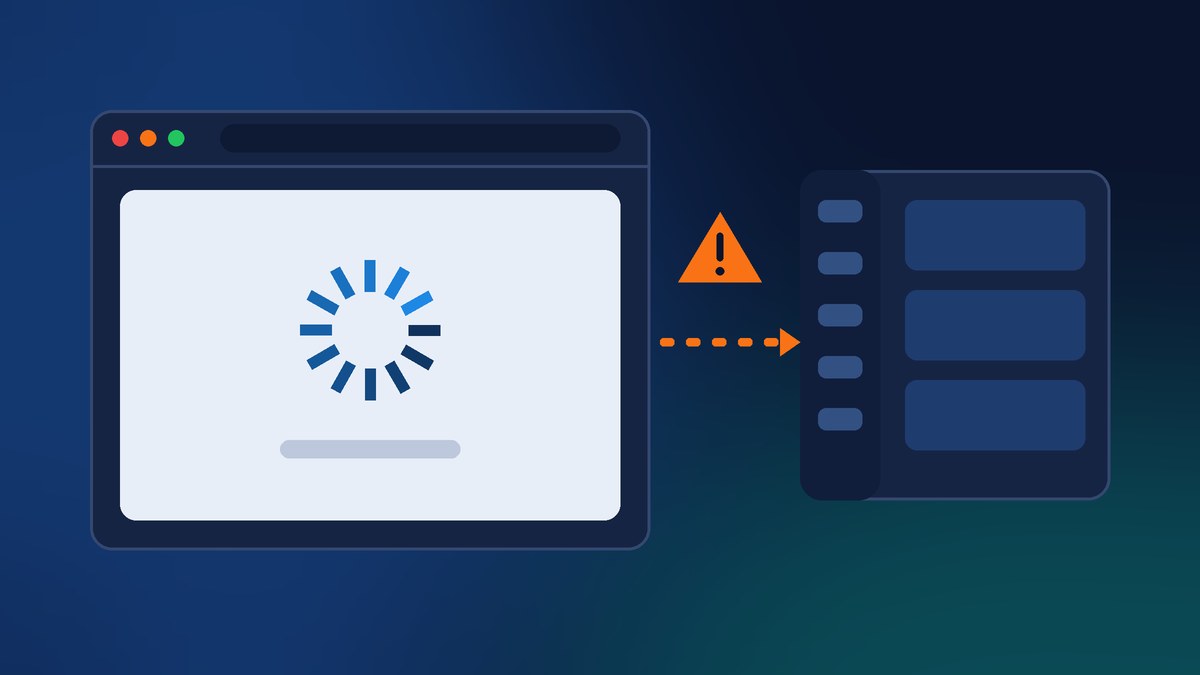
The plugin that gets installed is called Web Media Optimizer, version 2.1. It sounds like exactly the kind of speed plugin you might forget you installed. Securonix says plainly that “the plugin is a backdoor, not an optimizer.” Here’s what it does once it’s in:
- Injects outside code into your public pages, so your visitors load JavaScript controlled by the attacker.
- Hides itself from the normal Plugins list, action links, and update screens.
- Copies itself into the “must-use” plugins folder (
wp-content/mu-plugins/wmedia-recovery.php). WordPress loads anything in that folder automatically, and it can’t be turned off from the regular Plugins page. - Offers a hidden way back in that can log someone in as the site’s first administrator account without a password.
That third point is the one that worries me most for small businesses. As CyberPress summarized, “removing only the visible plugin may leave persistent access intact.” If someone notices something odd, deletes a plugin, and calls it fixed, the copy in the must-use folder keeps running.
The report also notes the fake verification screen can try to copy a command to your clipboard, a trick often called “ClickFix,” where a fake check asks you to paste something to “prove you’re human.” It also searches the browser’s storage for things that look like login tokens or API keys and sends them off.
Why This Matters for Small Business Websites
The whole attack depends on one very common habit: staying logged in to WordPress while you browse. I see this all the time. A business owner logs in to update their hours, leaves the tab open, then spends the afternoon reading news, checking email, and clicking links in that same browser. Securonix calls this out directly, saying the attack “targets that operational habit.”
Small business sites are also more likely to have several people with full administrator access: the owner, an office manager, a former employee, the nephew who set the site up years ago. Every one of those accounts that can install plugins is a possible way in.
And because the fake screen copies a page people trust, there’s nothing obviously “wrong” for a busy person to notice. We see Cloudflare’s checks so often that we just wait for them to finish.
Simple Habits That Shut This Down
The good news is that most of the fixes are habits, not expensive tools. Securonix’s own recommendations line up with what we already do for our clients:
- Use a separate browser or browser profile just for your website. Log in to WordPress there, make your changes, and log out. Do your everyday browsing somewhere else. This one change takes away the logged-in session the attack is looking for.
- Don’t browse other sites while logged in as an admin. If you need to look something up, do it in your everyday browser.
- Cut down who can install plugins. Most people who update content only need the Editor or Author role, not Administrator. Remove old accounts you don’t recognize.
- Consider turning off plugin installs from the dashboard. WordPress has a setting (
DISALLOW_FILE_MODSin thewp-config.phpfile) that blocks installing and updating plugins and themes from wp-admin. It’s not for everyone, because you’ll need another way to handle updates, but on sites we fully manage it can make a lot of sense. - Never paste a command because a “verification” page told you to. A real Cloudflare check doesn’t ask you to copy and run anything.
How to Check Your Own Site
If you want to take a quick look yourself, here’s where I’d start:
- Look at your Plugins page for anything you don’t recognize, especially anything called Web Media Optimizer.
- Check the “Must-Use” tab. If your Plugins page shows a “Must-Use” filter, click it and make sure you know what everything there is. Your host or developer can also look inside the
wp-content/mu-pluginsfolder directly, since this backdoor tries to hide. - Review your users. Go to Users and filter by Administrator. Anyone who doesn’t need that level of access should be downgraded or removed.
- View your page source and look for scripts loading from domains you don’t recognize.
If you think your site may have been hit, Securonix’s advice is to save evidence first, then remove both the visible plugin and the must-use copy, change administrator passwords, and log out all active sessions. Doing only part of that can leave the door open.
The Bottom Line
TRUST#GRAFT doesn’t break WordPress. It borrows your trust: in a familiar Cloudflare screen, in a harmless-sounding plugin, and in the admin session you left open in another tab. Keeping your website login separate from everyday browsing and limiting who can install plugins goes a long way toward stopping this kind of attack before it starts.
Want Us to Review Your WordPress Security?
If you’re not sure who has admin access to your site, what’s hiding in your plugins folder, or how to set up a safer login routine, we can help. Contact Final Web Design and we’ll review your users, plugins, and must-use files, tighten up permissions, and give you a clear, up-front plan.
Sources: Securonix Threat Research, “TRUST#GRAFT: JavaScript-Compromised Sites Target WordPress Admin Browsers to Deploy a Persistent PHP Backdoor”; Cybersecurity Times, “New TRUST#GRAFT Malware Targets WordPress Admins With Fake Cloudflare Checks and Hidden Backdoors” (Oct 26, 2026); CyberPress, “Hackers Use Fake Cloudflare Verification Pages to Target WordPress Admins With PHP Backdoors” (Oct 26, 2026).