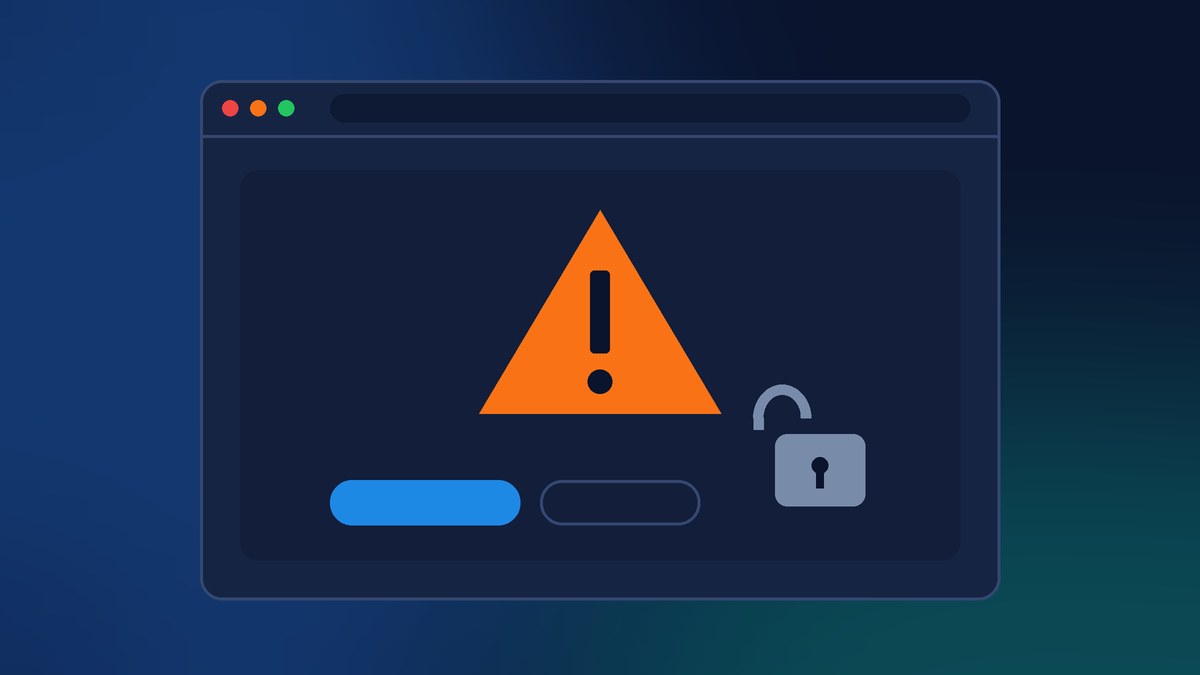
Last week Google made a change to Chrome that a lot of small business owners are going to bump into without knowing why. Chrome now stops and asks visitors for permission before it opens a website that doesn’t use a secure HTTPS connection. Not a little “Not Secure” label in the address bar after the page loads. A full warning page, before your site ever shows up.
If your website is already on HTTPS, you’re probably fine. But “probably” is doing a lot of work there. In my experience, the problem usually isn’t the main website. It’s the old domain you forward, the link in your Google Business Profile, or the redirect your registrar set up years ago. Here’s what changed, who it affects, and the quick checks I’m running on our clients’ sites this week.
What Google Changed on October 21
On October 21, 2026, Chrome’s Secure Web and Networking team announced that Chrome now explicitly asks users before making an insecure HTTP connection. Earlier this year the feature was only turned on for people using Chrome’s Enhanced Protection mode. Now it’s on for all users by default.
Google’s reasoning is simple. The old “Not Secure” badge was easy to miss, it couldn’t appear at all on quick hops like redirects, and it only showed up after the visitor’s connection was already exposed. The new warning gives people a chance to back out first.
According to Android Authority, the setting, called “Always Use Secure Connections,” is being turned on automatically on both desktop and mobile. Chrome’s own adoption guide for website owners says the default starts with Chrome 154.
How the Warning Actually Works
Here are the details that matter for a business website, straight from Google’s post and the Chromium guide:
- Chrome tries HTTPS first. The warning appears when Chrome can’t connect to a site securely but thinks it can connect over plain HTTP.
- Visitors can click through. It’s not a hard block. But every extra click is a chance for a potential customer to hit “back” and call your competitor instead.
- Chrome remembers the choice. Once someone approves a site, Chrome won’t warn them again unless they go about two weeks without visiting. That doesn’t help brand-new visitors, the people you’re trying to win.
- Local addresses are skipped. Things like your router at 192.168.0.1 or an internal “intranet/” name won’t trigger it by default.
- Certificate errors aren’t changing. If your SSL certificate expires, visitors will still see the same certificate error page they always have.
Google says early rollout data shows nearly 95% of desktop Chrome users don’t see any HTTP warning in a given week, and less than 1% see three or more. That’s good news for the web overall. It also means that if your site is one of the few that does trigger it, you’ll stand out, and not in a good way.
The Sneaky Part: Redirects
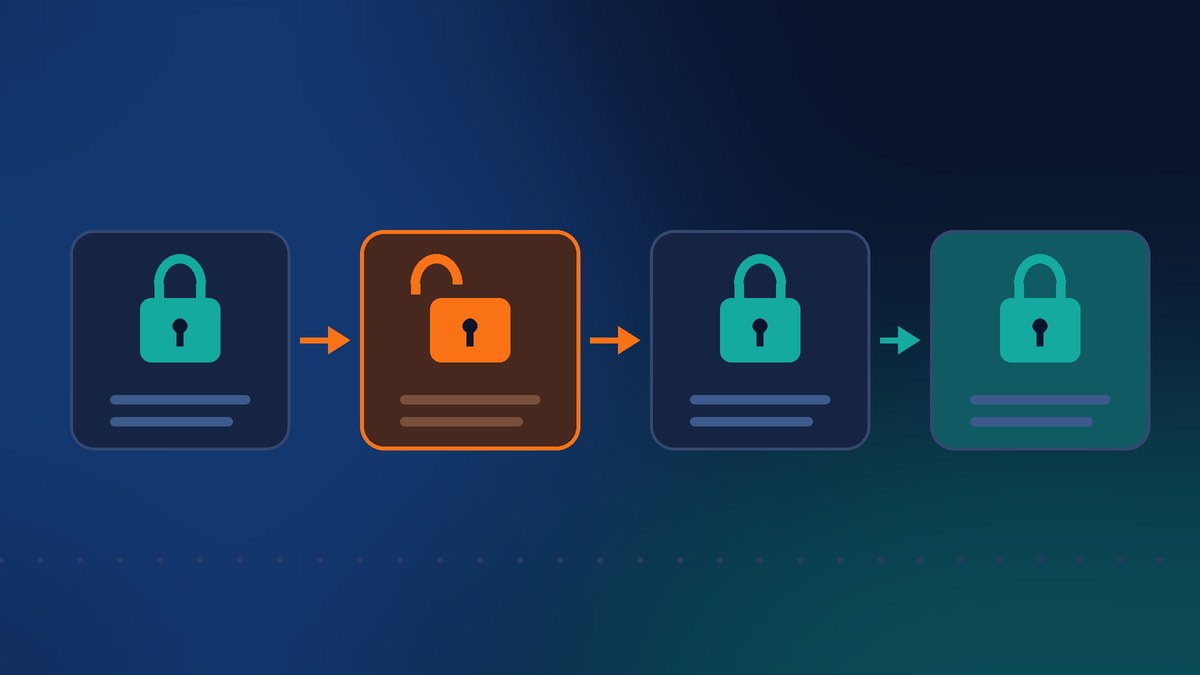
This is the part I want every business owner to read. Your website can be fully secure and visitors can still see this warning.
Chrome’s guide explains that if any step in the path to your site uses plain HTTP, the warning appears, even if the visitor ends up on a perfectly secure page after clicking through. Google even gives an example: your site runs on https://www.example.com, but someone types example.com, and the server sends them to the www version over HTTP because the bare domain was never set up for HTTPS. That visitor gets a warning first.
Here’s where I see this happen with small businesses:
- Extra domains you forward. The .net version of your name, an old business name, or a short “promo” domain that forwards to your main site through your registrar. The guide specifically says domain forwarding services may need extra setup to support HTTPS.
- The non-www (or www) version of your domain. One works securely, the other doesn’t.
- Old links you forgot about. An
http://link in your Google Business Profile, social media bios, email signature, online directories, or a QR code printed on business cards and signs. - Tracking and link redirects. If a link goes through a tracking redirect, Chrome says every step in that chain needs HTTPS. Multiple insecure hops can mean multiple warnings.
How to Check Your Own Site in 10 Minutes
Google recommends turning on the setting yourself to find problems, so start there:
- Turn on the setting in your own Chrome. Go to Settings, then Privacy and security, then Security, and make sure “Always use secure connections” is on. (Typing
chrome://settings/securityin the address bar gets you there too.) - Type every version of your address. Try
yourdomain.com,www.yourdomain.com, and thehttp://versions of both. Do it in a private window so Chrome doesn’t remember an earlier visit. - Test every domain you own. If you have extra domains that forward to your main site, type each one. If any shows a warning, that forwarding needs to be fixed.
- Click your own links from the outside. Open your Google Business Profile, Facebook page, Instagram bio, Yelp listing, and email signature, and click the website link on each one. Scan the QR code on your business card.
- Check your SSL certificate’s renewal. Most hosts renew free certificates automatically, but I still see expired ones. An expired certificate gives visitors an even scarier error.
What We Do to Fix It
If you find a problem, the fixes are usually quick. Here’s what we handle for our clients:
- Get HTTPS on every hostname. Both www and non-www, plus any extra domains, need a valid certificate, not just the main address.
- Redirect HTTP to HTTPS on the server with a permanent (301) redirect, so old links still land in the right place.
- Fix the WordPress settings. In WordPress, the WordPress Address and Site Address under Settings > General should both start with
https://. - Consider HSTS. HSTS is a header that tells browsers your site should only ever load securely. Chrome’s guide notes that when a site uses HSTS, Chrome doesn’t try to fall back to HTTP at all. It’s powerful, so we only turn it on once everything is confirmed working on HTTPS.
- Update the old links. Change
http://tohttps://on your Google Business Profile, social profiles, directories, and email signatures. Reprint QR codes if you have to.
If your site is behind a service like Cloudflare, as ours is, there are settings there to force HTTPS too. Just make sure your hosting and Cloudflare settings agree with each other, or you can end up with redirect loops.
The Bottom Line
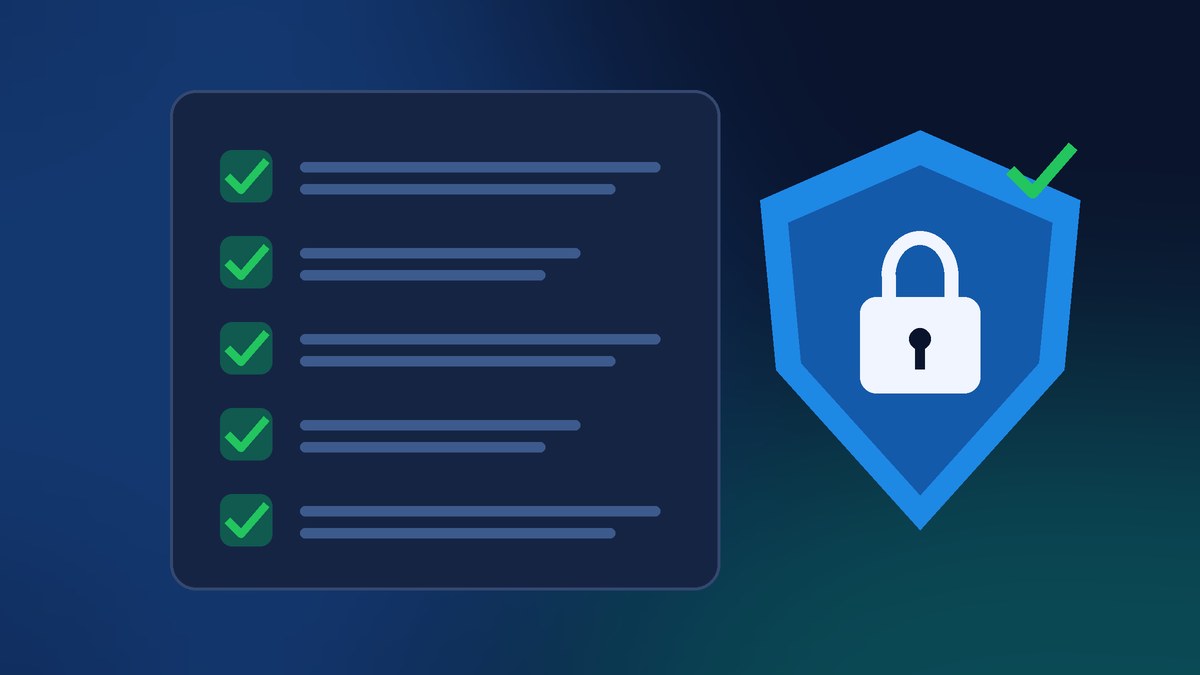
Google has been pushing the web toward HTTPS for more than a decade, and this is the step that makes it hard to ignore. For most businesses, the main website is already secure. The risk is in the corners: forwarded domains, old links, and redirect chains nobody has looked at in years. A potential customer who sees a security warning before your homepage loads isn’t going to stick around to find out it was a harmless redirect.
Want Us to Check Your Site?
If you’re not sure whether all of your domains and links are set up for HTTPS, or you’d rather not dig through registrar and hosting settings yourself, we can help. Contact Final Web Design and we’ll test every version of your address, fix any insecure redirects, and give you a clear, up-front plan.
Sources: Google, “Chrome Now Warns Before Insecure HTTP Connections” (Oct 21, 2026); Chromium Docs, “Adapting your website for Chrome’s ‘Ask-before-HTTP’ warning”; Android Authority, “Google Chrome now warns users before opening HTTP websites” (Oct 21, 2026).